
The Student Portal is a central hub for student engagement featuring events, organizations, forms, announcements, links, and more. Only users with Campus Administrator access can make edits.
Please note, only those with Campus Administrator access will be able to make changes to the Student Portal. If you do not see the options outlined below, please reach out to your Campus Administrator for assistance.
How to Access the Portal Editor
Hover over the gear icon in the left navigation and click Settings.
Click Student Portal from the secondary menu.
On the preview of your portal, click the pencil icon in the top right to begin editing.
Make your changes in the pop-up editor.
When finished, scroll down and click Save & Publish
— changes go live immediately.
Student Portal Options
Dashboard Page HeaderPortal title text shown over the cover photo (optional).
|
||
LogoRecommended size: 350px by 70px, transparent background.
|
||
Cover Photo960px × 375px PNG (text only if not using the header). GIFs are supported. Should contain no text unless you have chosen to not use the Dashboard Page Header and instead use a Cover Photo with Text on the image.
|
||
Cover Photo BlurA slider (0–30) to add an overlay blur to the cover image.
|
||
Featured ContentYou can highlight important organizations, events, experiences, points, skills, or forms that link directly from the homepage.
|
|
|
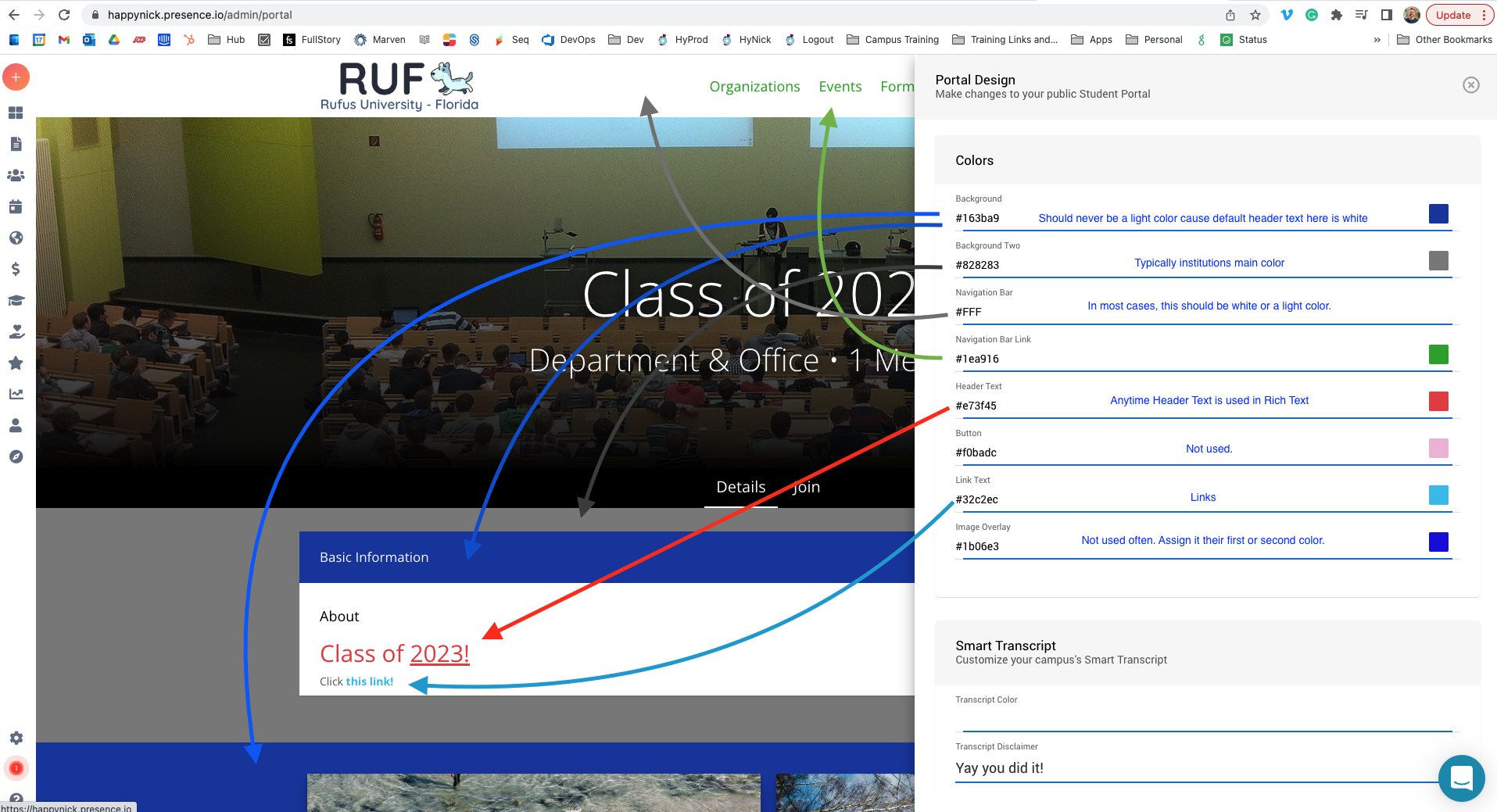
Colors
Scroll to the bottom of this page for a diagram of the color selections on a student portal.
|
||
Smart Transcript
|
||
Social Media
|
||
Resource LinksYou can enter any resource links. It's nice to add their student life page to create their first resource link.
|
|
|
App LinksAdd the iOS Store and Android Store page links for the new mobile app:iOS Store: https://apps.apple.com/us/app/modern-campus-presence/id1638706822Android Store page: https://play.google.com/store/apps/details?id=com.moderncampus.presence&hl=en_US&gl=US
|
||
News FeedUsing RSS (Really Simple Syndication) a campus can add a news feed to its site.More information on RSS feeds can be found at this link: https://www.lifewire.com/what-is-an-rss-feed-4684568You can use a feed validator to check if the provided RSS feed will work: https://www.rssboard.org/rss-validator/
|
||
Important InformationThis is a great place to add important dates coming up, a YouTube video, or seasonally appropriate events and clubs!
We recommend updating this section regularly to make your home page more of a "living document." |
||
Comments
Please sign in to leave a comment.